

Review Your Cart

Your cart is empty.

You haven't added any eSIM packages yet. Start exploring our plans to get connected!

Browse our eSIM Packages

Egypt Egypt   / Giza Zoo

8 plans · From $4.90 · QR code instantly by email

  • Etisalat network
  • No ID check
  • Top-up available
  • Validity starts on activation

Plan Your Trip

Tell us what you'll do and how long you'll be away — we'll highlight the right plan.

7 days
1102030

What will you do?

Tap an activity above to see which plan fits your trip
Wide exterior view of Giza Zoo in Cairo, Egypt at golden hour with the leafy entrance approach

Giza Zoo eSIM: Egypt Data That Works Beyond Cairo

You're heading to Giza Zoo with directions to the gate open, a pickup to coordinate after the visit, and the rest of your day around Grand Egyptian Museum still sitting on your phone. With eSIMno, you can buy your Egypt eSIM in minutes, install it before departure, and switch it on after landing so your data is ready as soon as you start moving across Cairo and the rest of Egypt.

Already a customer?

EARN UP TOON EVERY FRIEND'S PURCHASE
NETWORK: Etisalat Depending on the plan you choose, you'll connect to one or more of these networks.

Quick Facts

Language
Arabic (عربي)
Currency
Egyptian Pound (EGP, E£)
Time Zone
E. Europe Standard Time (UTC+2)
Dialing Code
+20
Power Plug
Type C, E, F (round 2-pin, common across most of Europe)
Emergency
122 (police), 123 (ambulance), 180 (fire)
eSIMno Networks
Etisalat

How to Get Your eSIM

  1. Pick Your Egypt Plan Before The Trip
    Buy your data plan before you fly so you are not sorting mobile setup on the road from Cairo International Airport to Giza Zoo. This venue visit is short, but the same plan keeps working for the rest of your Egypt itinerary too.
  2. Install On Hotel Or Home WiFi
    Set up the eSIM QR at home or on reliable WiFi before departure. That leaves only one action for arrival day: switch the line on after landing and let your phone connect when you leave the airport.
  3. Activate After Landing In Cairo
    Turn the eSIM on after touchdown, once the captain clears phone use. By the time you are booking a ride toward Giza, checking Google Maps, or messaging your driver near the zoo entrance, your data is already live.
  4. Use Data For The Zoo And The Journey Back
    At Giza Zoo, your connection helps with route finding, translation, ride-hailing, and sharing a live location with the rest of your group. When you leave, it is just as useful for traffic-aware routing toward Dokki, Downtown, or the pyramids area.
  5. Keep Your Home SIM For Voice
    eSIMno is data-only. Your home SIM can stay active for incoming calls with no extra setup, while WhatsApp, FaceTime, Telegram, and other internet-based apps run over your Egypt data for messages and internet calls.

Traveler Tips

  • Aim for the morning window, around 9:00 to 11:00, if Giza Zoo is part of a packed Cairo day. That gives you cleaner time for Maps, ride pickup, and the next booking before midday traffic builds on the roads around Giza Square.
  • If you are leaving from central Cairo or Dokki, confirm the exact gate pin in Google Maps before the car arrives. A live data connection matters here because a driver can stop on a different side of the perimeter road than you expect.
  • Keep your home SIM active for incoming calls and use data apps for everything else. After a zoo visit, that is the easiest way to coordinate with a guide or family group without placing native roaming calls from your primary line.
  • Download one offline Cairo map before the flight, then still use live data after landing for traffic and rerouting. The route from Giza Zoo to the Great Pyramid area or Downtown changes fast enough that static directions are not enough.
  • Carry a power bank if Giza Zoo is only one stop in a full sightseeing day. Between photos, navigation, translation, and ride apps across Cairo, a phone battery can drop hard over 6 to 8 hours.

Why Data Matters at Giza Zoo

Giza Zoo is the kind of stop where mobile data saves time in short bursts all day. You are not sitting in one place for three hours with stable hotel WiFi in the background. You are moving between the entrance, internal paths, shaded rest points, and the curb outside, then straight into the next Cairo transfer. That is why travelers arriving from Cairo International Airport are better off with data already active. The job starts with navigation to the correct gate, then continues with Uber pickup coordination, Google Maps rerouting, and WhatsApp messages to the rest of the group if anyone gets separated near the entrance or exit.

The bigger win comes after the visit, because Giza Zoo sits in a dense part of the city where plans branch quickly. One group heads north toward The Egyptian Museum, another crosses toward Cairo University and Dokki, and plenty of travelers continue west for the pyramid area later in the day. In that stretch, live traffic data, translation for Arabic signs, cloud photo backup, and restaurant booking checks all happen on the move. eSIMno plans for Giza Zoo, Cairo, Egypt make that handoff simple: buy once, install before departure, activate after landing, and keep the same Egypt data plan running through every venue on the trip.

Visiting Giza Zoo

Giza Zoo works best as a half-day stop, not a full-day anchor, so the practical question is how smoothly you can get in, move around, and get back out into Cairo. Opening times and entry procedures can change, so it is worth checking the latest official notice on the day of your visit before you leave the hotel. That quick confirmation matters when you are building the day around another timed visit or a lunch booking across town.

The venue sits near the Giza and Dokki side of the city, making it easy to pair with nearby neighborhoods rather than treating it as an isolated excursion. For a traveler, that means your phone is doing several jobs in sequence: confirming the visit window, translating quick Arabic text when needed, finding the correct curb for pickup, and sharing your live ETA with anyone meeting you later. If you are visiting with children or as part of a guided group, keep one meeting point pinned on the map before you enter so it is easy to regroup at the exit without long phone-call exchanges.

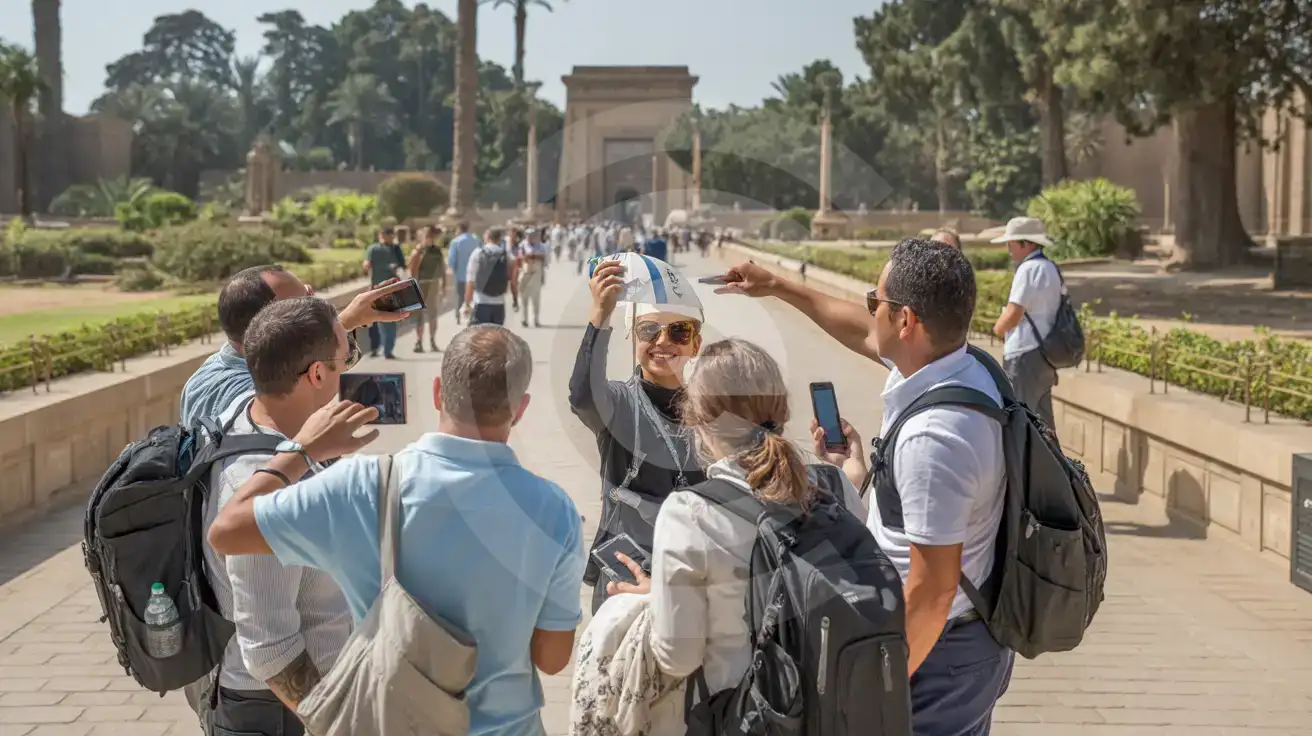
Tour Group At The Zoo Grounds

Guided tour group using phones along a shaded interior pathway at Giza Zoo, Cairo, Egypt
At Giza Zoo, Cairo, Egypt, set up your eSIM before departure so maps and ride pickups work the moment you head out.

Compare Connectivity Options at Giza Zoo

Recommended
Local SIM / Operator
Roaming
IMEI registrationYour phone is logged for customs; a 90-day clock startsNever required
Setup timeBought in person, with your passportAuto
No local ID neededYour passport is copied and tied to the SIMUse home account
SpeedCarrier-gradePartner-dependent
Travel supportArabic-language serviceHome carrier hours
Keep home numberReplaces itSame number
Cost predictabilityPrepaid, no bill shockBill-shock risk
Typical pricing
You hand over your passport in a shop, and an Egyptian SIM gives your phone only 90 days before customs fees apply.
Prepaid internet bundle, renews every 28 days, on the Vodafone network only.
$12-18 / day
Typical daily roaming rate; varies by home carrier

PRICING — PICK YOUR ESIMNO PLAN

Light traveler
5GB / 30 days
$14.90
20% off for memberson your first order
≈ $11.92 USD member price
Buy now
Heavy traveler
20GB / 30 days
$30.90
20% off for memberson your first order
≈ $24.72 USD member price
Buy now

Frequently Asked Questions (FAQs)

Activate it after landing in Cairo, not before departure. That timing means your data is ready by the time you leave Cairo International Airport and start routing toward Giza Zoo on Google Maps or book an Uber across the river.
Yes — that is the point of buying an Egypt plan instead of solving connectivity for one stop only. After Giza Zoo, the same data can carry you to the Grand Egyptian Museum, a hotel in Dokki, or another city later in the trip without changing SIMs.
Set one meeting point on your map before you enter and keep a WhatsApp group active during the visit. Inside Giza Zoo, that is far faster than trying to reconnect by voice call when part of the group has already moved toward the exit or snack area.
No — a short venue stop is exactly why travelers choose eSIMno. You can install it before the trip, activate after landing, and use the connection for the taxi to Giza Zoo, live navigation around Giza, and the rest of your Egypt schedule without hunting for a kiosk.
Yes. eSIMno is data-only, so your home SIM stays active for incoming voice calls with no special routing setup, while apps like WhatsApp or FaceTime use your Egypt data during the Giza Zoo visit and on the drive back through Cairo.
Giza Zoo draws families, tour groups, and day-trippers who move quickly between the gates, shaded paths, snack stops, and exits onto busy Cairo streets. That makes mobile data useful long before you arrive. If you install your Egypt eSIM before the flight and activate it after landing, your phone is ready for Google Maps directions from Cairo International Airport, Arabic-to-English translation, ride-hailing pickup messages, and the booking details for the next stop on your itinerary. A venue like Giza Zoo is not where you want to rely on a slow sign-in page or spend time hunting for a physical SIM shop. The practical need continues once you're outside the zoo. The route back toward Dokki, central Cairo, or the Nile-side hotels changes with live traffic, and app-based rides work better when your data is already active. If you're using Uber or checking Metro connections near Cairo University, a working connection saves time at the curb and keeps your plans moving. Travelers also use data here for photo backups, family group chats, translation at nearby cafés, and checking updated opening details before crossing town. This page is built for travelers ready to buy, not just browse. A Giza Zoo eSIM should work for more than one venue, and that is the real value: one setup before departure, then local data that keeps working across Cairo, Giza, and the wider Egypt trip. If your itinerary continues to the pyramids, museums, hotel check-in, or another city later in the week, you keep the same plan active instead of buying a second SIM or depending on patchy public WiFi.
Back to Egypt

Connected in 3 steps

  1. Choose your planSearch for your destination, then pick the data and number of days.
  2. Install at homeYour eSIM arrives by email and installs in a few minutes with one tap or a QR code.
  3. Connect when you landYour plan's validity starts with its first connection in the coverage area.

Why eSIMno?

  • No more SIM kiosksSkip the airport queues. Install your eSIM at home, activate when you land.
  • No roaming surprisesForget the $200 phone bill three weeks after your trip. Plain pricing, no hidden fees.
  • Keep your own numberDual-SIM means your physical SIM stays active for calls and texts. eSIM handles only data.
  • Setup in 2 minutesScan QR code, follow on-screen steps, you're connected. Works on any eSIM-compatible phone.

Is my phone eSIM compatible?

Most phones released in recent years support eSIM. Check yours in the list before you buy.

  • iPhone XR, XS and later
  • Samsung Galaxy S20 and later
  • Google Pixel 4 and later
  • Xiaomi 12T Pro and later
All eSIM-Compatible Phones

Our guarantees

  • Secure payment with 3D SecurePay by card; every payment goes through your bank's 3D Secure check.VisaMastercard
  • 14-day refund if not installedIf you haven't installed your eSIM yet, you can get a refund within 14 days of purchase, no reason needed.Refund policy
  • 24/7 Customer SupportReach our team via WhatsApp and email during business hours. Quick answers to common questions available anytime through our automated assistant.

Frequently Asked Questions (FAQs)

How fast does the eSIM activate after I switch off airplane mode?
Activation typically takes 10-30 seconds after airplane mode is switched off, depending on local network availability. In some cases it's nearly instant; in remote areas it may take a minute or two. If it doesn't connect within 5 minutes, restart your phone or check that data roaming is enabled.
Can I make phone calls or send SMS?
It depends on the plan you choose. Most eSIMno plans are data-only: on those you cannot place regular calls or send SMS from the eSIM line, but messaging and calling apps work normally over the data connection - WhatsApp, iMessage, FaceTime, Telegram, Signal and Google Meet. We also offer voice plans in selected destinations, and on those calling and SMS work from the eSIM line itself, which comes with its own French phone number and unlimited calling across Europe. Every plan card shows which type it is, so check the plan type before you buy. If you are looking at a voice plan, please also read who you can call and text, and what happens to the phone number - both are explained in their own questions below.
What should I do if I see a 'No network' message after activating my eSIM?
If you see a 'No network' message after activation, try these steps in order: (1) Toggle airplane mode on for 10 seconds, then off. (2) Confirm data roaming is enabled for the eSIM line. (3) Manually select a network in cellular settings. (4) Restart your phone. If the issue continues, contact eSIMno support via WhatsApp or email.
What customer support is available if I have issues?
eSIMno offers support via WhatsApp and email. Our team helps with installation, troubleshooting, billing questions and refund requests during business hours, and our automated assistant answers common questions 24/7. Most issues are resolved within minutes during business hours.
Can I share data from my eSIM with someone else's phone?
Yes, through Personal Hotspot. Activate hotspot on your phone, share the password, and the other device connects to your data. Data used by connected devices counts toward your eSIM plan, so monitor usage to avoid running out faster than expected.
When should I set up my eSIM?
A Wi-Fi connection is required to install your eSIM, so we recommend setting it up before you leave home. Activation can happen later, either right before departure or after you land at your destination - but the initial QR scan needs Wi-Fi.
Can I use the eSIM to make video calls?
Yes - apps like FaceTime, WhatsApp, Zoom, Google Meet, and Microsoft Teams all work over your eSIM data. Video calls use about 200-400 MB per hour depending on quality, so factor that into your plan choice if you make long calls regularly.
Who can I call and text on a voice plan?
Outgoing calls and SMS are unlimited across Europe - that is the calling area, and it is not the same as where the plan gives you data. Incoming calls and SMS go further: they reach you from anywhere in the world, they are free, and they do not use up your allowance. So if someone back home calls or texts your eSIM number, it arrives no matter where they are calling from. If you mainly need to be reachable rather than to make calls, that matters more than the outgoing area.
How can I verify if my eSIM is activated?
There are two clear indicators: (1) your phone's status bar shows the local carrier name once you arrive at your destination, and (2) the data icon (4G, LTE, or 5G) appears next to the eSIMno line in your cellular settings. If neither shows up, turn airplane mode on and then off again, or restart your phone.
Do I need to remove my eSIM after my trip?
You don't have to remove it. When your plan ends, the eSIM stops providing data and moves to Archived in Profile > My eSIMs. If you keep it installed on your phone, you can top it up there and use it again - no new QR code needed (top-ups aren't available for unlimited and voice plans). If you need the space, you can delete the old profile in your phone's cellular settings; after that, you'll need a new eSIM for your next trip.
Can I keep my WhatsApp number while using an eSIM?
Yes. Your WhatsApp number stays linked to your home SIM, so all your chats, contacts, and groups remain unchanged. WhatsApp uses data (not the SIM line directly) for messages and calls, so it works seamlessly over your eSIMno data.
How can I purchase the Egypt eSIM?
You can purchase your eSIM directly from the eSIMno website - select a Egypt plan and complete the payment. Within minutes you'll receive an order confirmation email that contains everything you need to install: a QR code, a one-tap install link, the SM-DP+ address and activation code, plus an "Install eSIM" button. You can install straight from that email, or sign in anytime and go to Profile > My eSIMs > Install to get the same options.
All questions